

Documentation Index
Fetch the complete documentation index at: https://allhandsai-agent-sdk-18-profile-manager.mintlify.app/llms.txt
Use this file to discover all available pages before exploring further.
Prerequisites
Before using OpenHands CLI with ACP, you must first install and configure the CLI:- Install OpenHands CLI by following the CLI Mode installation instructions
- Configure your LLM settings using the
/settingscommand
What is the Agent Client Protocol (ACP)?
The Agent Client Protocol (ACP) is a standardized communication protocol that enables code editors and IDEs to interact with AI agents. ACP defines how clients (like code editors) and agents (like OpenHands) communicate through a JSON-RPC 2.0 interface. For more details about the protocol, see the ACP documentation.ACP Integration
Toad
Toad is a universal terminal interface for AI agents, created by Will McGugan, the creator of the popular Python libraries Rich and Textual. The name comes from “textual code”—combining the Textual framework with coding assistance. Toad provides a modern terminal user experience that addresses several limitations common to existing terminal-based AI tools:- No flickering or visual artifacts - Toad can update partial regions of the screen without redrawing everything
- Scrollback that works - You can scroll back through your conversation history and interact with previous outputs
- A unified experience - Instead of learning different interfaces for different AI agents, Toad provides a consistent experience across all supported agents through ACP
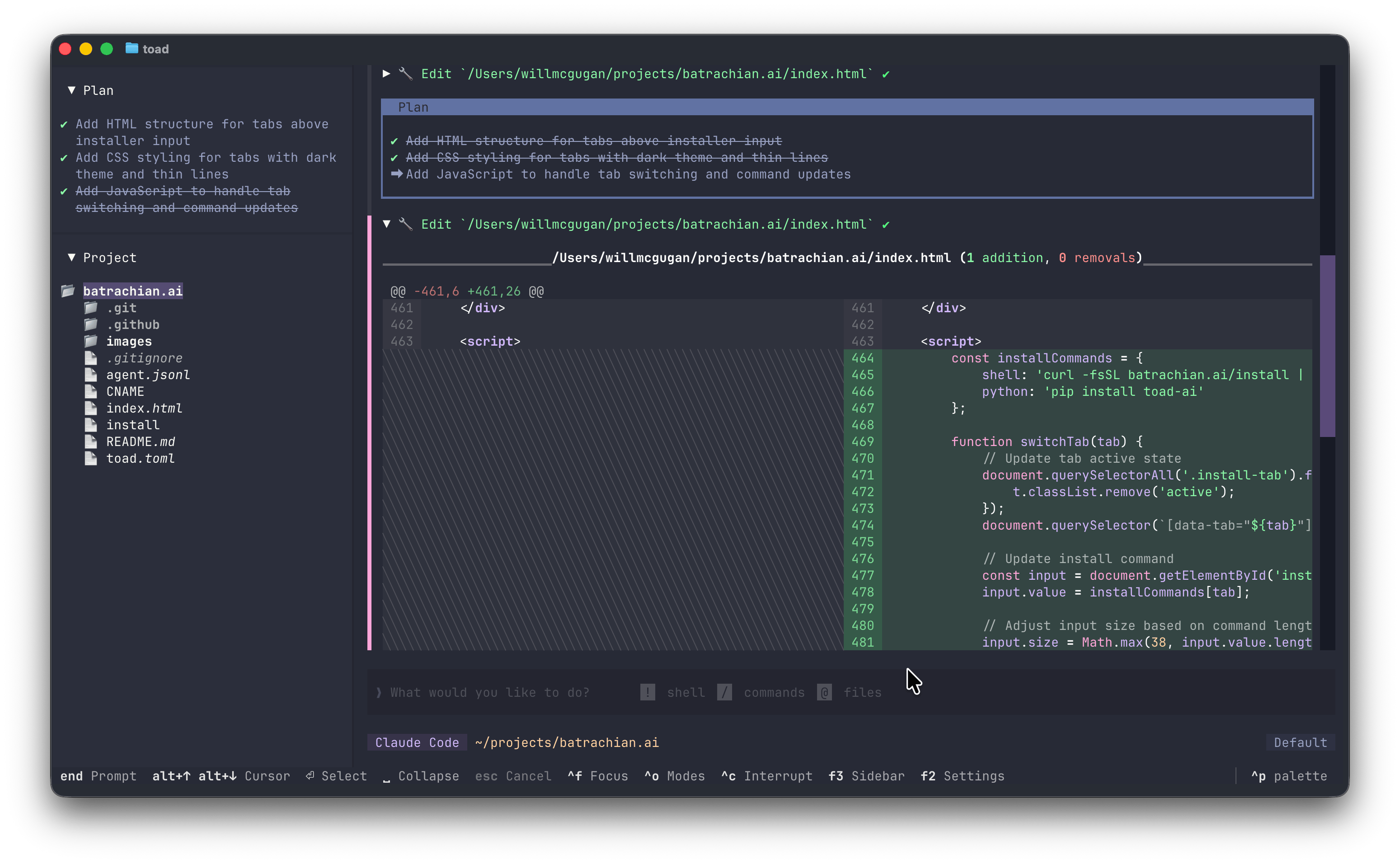
Installation
Install Toad using uv:Using OpenHands with Toad
- Open Toad’s agent store
- Find OpenHands in the list of recommended agents
- Click “Install” to set up OpenHands via
uv tool install openhands --python 3.12 && openhands login - Select OpenHands and start a conversation
Passing Command Line Arguments
You can launch Toad with specific OpenHands command line arguments by passing the full command:--llm-approve for automatic LLM approval mode.
Some OpenHands CLI flags like
--resume and --last are not yet supported in ACP mode. See this issue for updates.Zed IDE
Zed is a high-performance code editor with built-in support for the Agent Client Protocol. To configure OpenHands CLI with Zed:- Ensure OpenHands CLI is installed and configured (see Prerequisites)
-
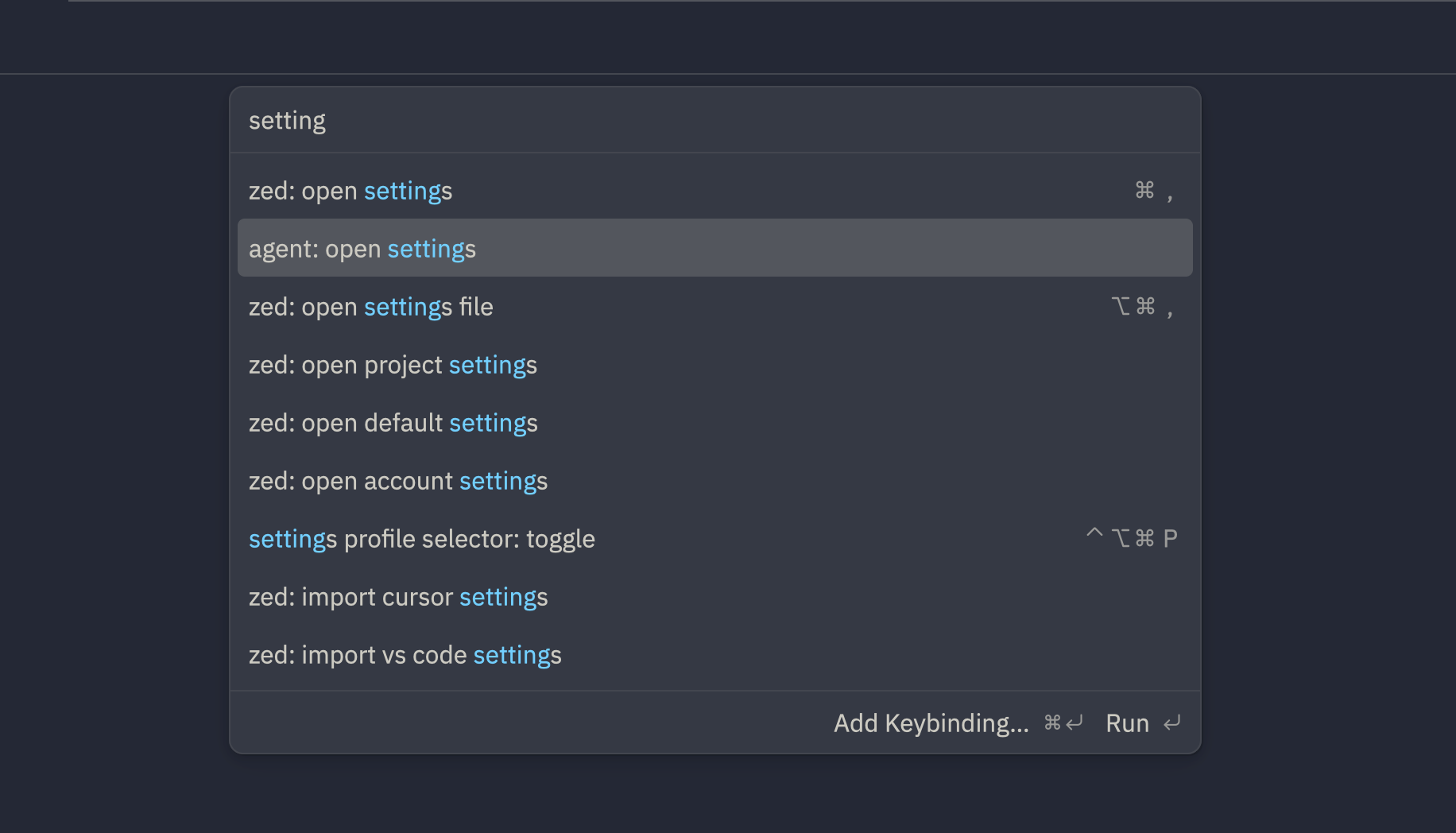
Open your Zed editor, use
Cmd+Shift+P(Mac) orCtrl+Shift+P(Windows/Linux) to open the command palette, and search foragent: open settings
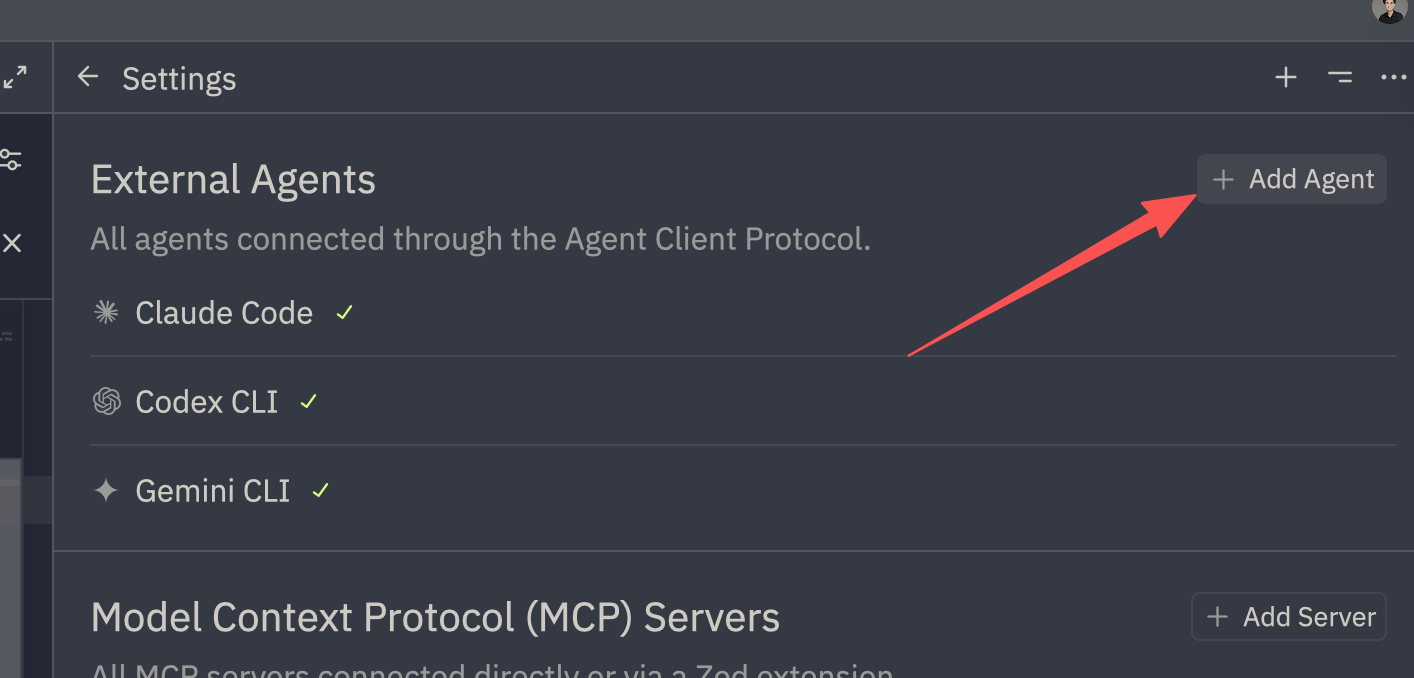
- Then on the right side, click on
+ Add Agentand selectAdd Custom Agent
- Add the following to the
"agent_servers"field:
- Save the file
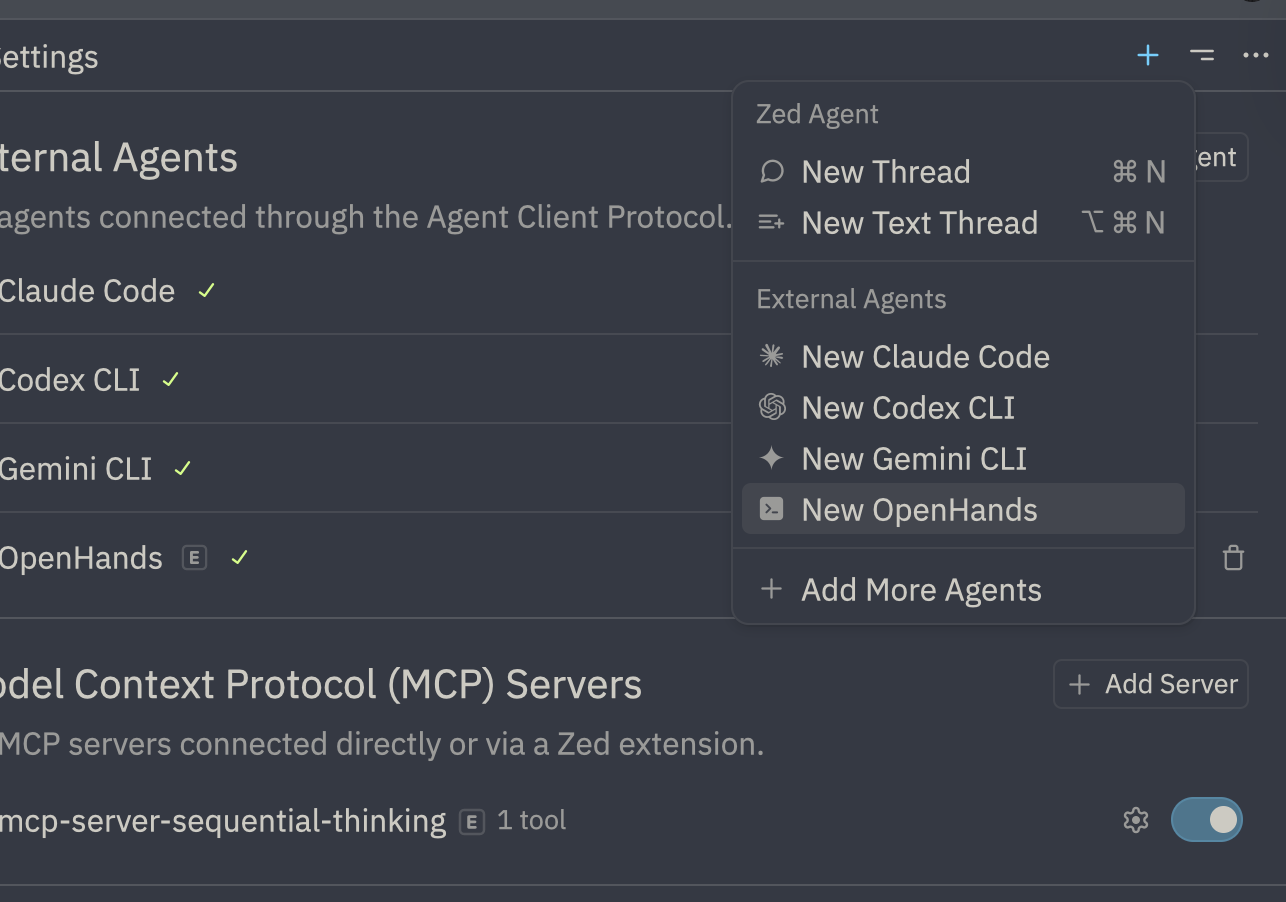
- You can now use OpenHands within Zed!
Troubleshooting
If you encounter issues while using OpenHands in Zed with the ACP plugin, you can access detailed debug logs:- Open the command palette with
Cmd+Shift+P(Mac) orCtrl+Shift+P(Windows/Linux) - Type and select
acp debug logto view detailed debug information - Review the logs for any errors or warnings
- Restart a new conversation to reload connections after making configuration changes
If you encounter persistent issues, verify that OpenHands CLI is properly configured (see Prerequisites) and that all server commands are executable from your system PATH.
JetBrains IDEs
JetBrains IDEs (IntelliJ IDEA, PyCharm, WebStorm, etc.) support the Agent Client Protocol through JetBrains AI Assistant. To configure OpenHands CLI with JetBrains IDEs:- Ensure OpenHands CLI is installed and configured (see Prerequisites)
-
Find the full path to the
openhandsexecutable by running in your terminal:
- Create or edit the file
$HOME/.jetbrains/acp.jsonand add the following configuration, replacing{full_path_to_openhands}with the actual full path from step 2:
which openhands returns /Users/username/.local/bin/openhands, your configuration should look like:
- Follow the JetBrains ACP instructions to open and use an agent in your JetBrains IDE
Make sure you have JetBrains AI Assistant enabled in your IDE. The AI Assistant is available in JetBrains IDEs version 2024.3 or later.
See Also
- CLI Mode - Learn about using OpenHands CLI interactively
- ACP Documentation - Full Agent Client Protocol specification
- Toad Documentation - Learn more about using Toad terminal interface
- Zed Documentation - Learn more about using Zed editor
- JetBrains ACP Documentation - Learn more about using ACP in JetBrains IDEs